
Table of Contents
You buy a gaming laptop because you want the freedom to play anywhere. Then you unplug it, launch your favorite game, and watch the battery percentage drop faster than expected. If the product page mentioned “up to 10 hours,” the experience can feel like a broken promise.The real issue is that gaming laptop battery life changes dramatically depending on what you’re doing. Writing an essay with integrated graphics is not the same workload as running a new AAA game on an RTX GPU. Battery capacity, processor, display, power settings, and the manufacturer’s software all influence the result.
This guide explains how to interpret battery claims, what independent tests actually measure, and how to improve unplugged endurance without promising magical all-day gaming.
Gaming Laptop Battery Life: The Quick Answer
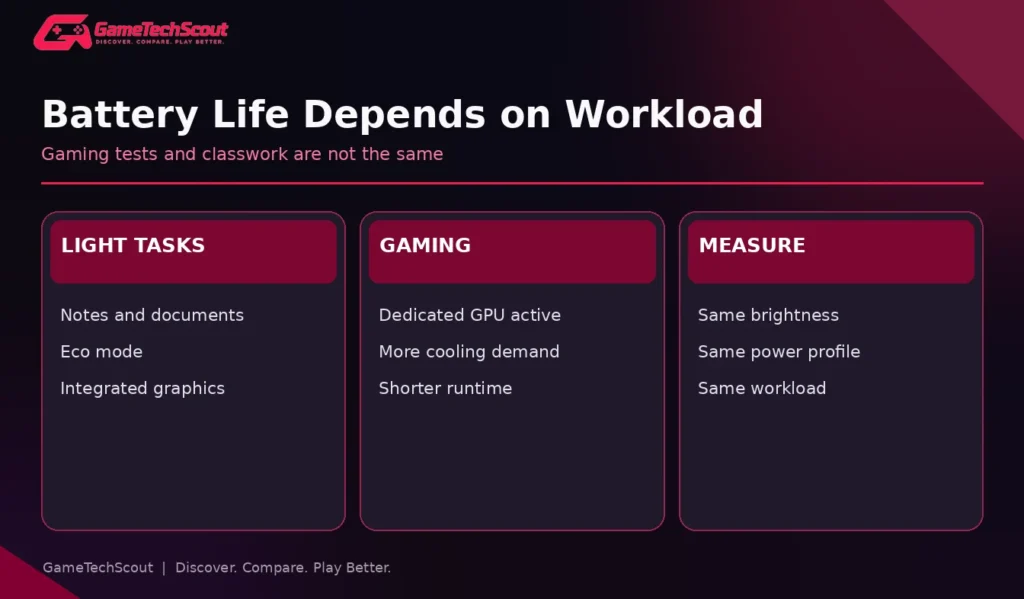
A gaming laptop can last for hours during web browsing or document editing, but intensive gaming usually drains the battery much faster. Many systems also lower their GPU power or frame-rate target when unplugged to manage heat and energy use. Your best improvement comes from matching power settings to your current task—not expecting desktop-style performance on battery.
| Activity | Typical battery demand | What to prioritize |
|---|---|---|
| Notes and documents | Relatively light | Eco profile, lower brightness, integrated GPU |
| Browsing and video calls | Light to moderate | Background apps and wireless power use |
| Streaming video | Moderate and variable | Codec efficiency, screen brightness |
| Competitive gaming | High | Frame-rate cap and reduced settings |
| Demanding AAA gaming | Very high | Plugged-in play for full performance |
| Video editing or 3D rendering | High | Task duration and power limits |
These are workload categories, not promises of specific hours. Runtime must be measured on the exact model under a stated test method.
Why Gaming Drains a Laptop So Quickly
The GPU and CPU Are Working Hard
A gaming laptop has powerful hardware packaged into a portable chassis. When a game demands many frames, the CPU computes gameplay and the dedicated GPU renders images. More active hardware consumes more energy and produces more heat. The machine may respond with higher fan speeds and different power limits.
NVIDIA describes BatteryBoost as a way to regulate game performance toward a target frame rate when unplugged. Its published “up to” claims are technology descriptions, not guaranteed battery improvements for every laptop or game.
Display Brightness and Refresh Rate Matter
A bright 1600p OLED screen can contribute substantial power draw, especially when a white webpage fills the screen. A 240Hz panel may also be configured differently from a lower-refresh mode. That doesn’t mean OLED always drains faster than IPS; display efficiency and content matter.
Reduce brightness to a comfortable level and use a lower refresh setting when you’re doing coursework rather than gaming. In supported laptops, switching from the dedicated GPU to integrated graphics for desktop work can reduce wasteful power use.
Background Apps Can Keep Hardware Awake
An RGB control app, browser with many active tabs, game launcher, recording overlay, or external monitor can make a supposedly “idle” computer work harder. Rather than disabling everything randomly, use Windows Task Manager and the operating system’s battery usage report to identify the applications that matter on your system.
What Independent 2026 Gaming Battery Tests Show
PC Gamer’s 2026 gaming laptop comparison includes a dedicated PCMark gaming battery-life table. Its listed examples range from 183 minutes for the Gigabyte Gaming A16 to 156 minutes for an ASUS TUF A14 (2025), while a Lenovo LOQ 15 Gen 10 is listed at 89 minutes. Those results show considerable variation between products tested under the same publication’s approach.
| Laptop in PC Gamer’s test table | Gaming battery test |
|---|---|
| Gigabyte Gaming A16 | 183 minutes |
| ASUS TUF A14 (2025) | 156 minutes |
| Razer Blade 16 (2025) | 135 minutes |
| Lenovo LOQ 15 Gen 10 | 89 minutes |
| Alienware 18 Area-51 | 81 minutes |
Read this table carefully: The figures are from one specific benchmark methodology, with particular configurations, and they do not represent every game’s actual playtime. They also cannot be used to estimate classroom battery life. PCMark gaming-battery tests and normal productivity loops simulate different workloads.
Why Reviewers Can Report Very Different Hours
One reviewer might measure local video playback at moderate brightness, another might use continuous web browsing, and a third might run a game until shutdown. A laptop can perform well in one test and poorly in another without any contradiction.
Before trusting a runtime number, look for the screen brightness, power profile, GPU mode, refresh rate, workload, and test endpoint. Ideally find both gaming and productivity measurements for your exact laptop SKU.
How to Improve Gaming Laptop Battery Life: Ten Practical Changes
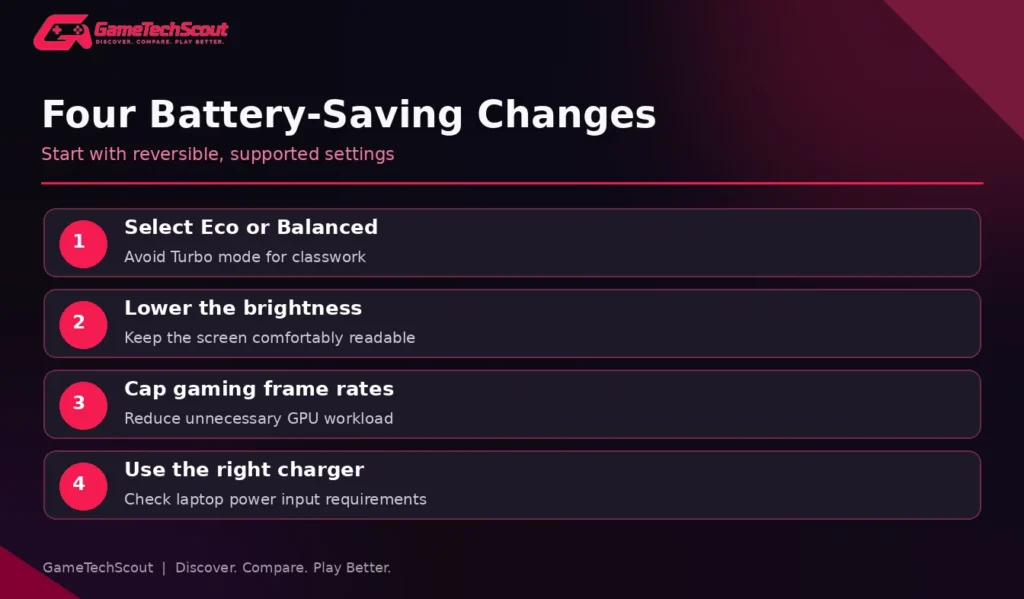
1. Switch to a Balanced or Eco Power Profile
Most modern gaming laptops include a manufacturer control panel with performance modes. Microsoft’s Windows 11 power settings guide also explains how energy saver, power mode and screen sleep options affect consumption. When browsing or writing, choose Eco or Balanced instead of Turbo. Some models can temporarily disable the dedicated GPU. Watch whether that also changes ports or external-monitor functionality before relying on it.
2. Lower Screen Brightness
Set brightness only as high as needed for comfortable viewing. Peak brightness marketing is not a target for every room. Brightness is particularly important when you’re studying in a dark library or bedroom.
3. Reduce Refresh Rate for Office Work
A 240Hz screen is great when you play a fast game. It often provides little practical benefit while writing notes. If your laptop offers an automatic or manual 60Hz mode, test whether using it helps light-use endurance without affecting readability.
4. Cap Your Frame Rate in Games
A cap such as 45 or 60 FPS can reduce the work required when your hardware would otherwise generate more frames. Choose a target you find playable and check whether the game’s limiter, driver controls, or supported battery-gaming features work best. It is normal to see lower performance away from a charger.
5. Reduce the Game’s Workload
Drop demanding ray-tracing features, high shadow presets, unnecessarily high resolution, and expensive visual effects. Upscaling can help supported games reduce the rendering burden. If lowering graphics quality hardly changes power draw, the game may be CPU-limited or the device may already be capped by its battery mode.
6. Use Integrated Graphics for Light Tasks
When supported, hybrid graphics lets integrated graphics handle browsing while the dedicated GPU sleeps. Check Windows graphics preferences and your laptop’s own control utility. Don’t force the wrong GPU for an application that genuinely needs acceleration.
7. Close Unnecessary High-Impact Applications
Review active background tasks, startup applications and overlays. Don’t disable security software or essential manufacturer services simply to save a few minutes; focus on apps whose activity you can measure.
8. Turn Off Unused RGB Effects and Peripherals
RGB lighting, wireless peripherals and attached devices can contribute additional draw. Their effect is usually smaller than the CPU, GPU, or display, so treat them as secondary optimizations rather than the headline fix.
9. Keep Airflow Clear
Excessive heat can cause fans to work harder or clocks to fluctuate. Place the laptop on a firm surface and keep vents clear. If you’re noticing unexplained drops in performance, follow our gaming laptop overheating diagnosis guide before changing advanced settings or opening the chassis.
10. Maintain Healthy Charging Habits
Use the correct charger and the manufacturer’s battery-health features where provided. A charge-limit option can help manage battery aging if your machine stays plugged in often, though it deliberately reduces the amount of energy available for a later unplugged session. Follow your specific model’s documentation rather than assuming a universal charging rule.
Battery Capacity Is Not the Whole Story
Battery capacity is commonly listed in watt-hours (Wh). A larger number means more stored energy, but doesn’t automatically mean longer runtime because the system’s power draw matters just as much.
As a simplified illustration, a 70Wh battery would theoretically support a 14W average workload for about five hours, before accounting for system behavior and usable capacity. At a 70W average load, the simple energy calculation suggests roughly one hour. Real batteries and laptops don’t operate as perfect fixed-power systems, so these are arithmetic examples, not predictions for a model.
Consider two 14-inch models with similar battery sizes: one may run longer during web browsing because of its CPU, GPU switching, display and firmware. The battery label alone won’t settle the comparison.
Should You Game While Charging?
For demanding play, yes: many gaming laptops are designed to use their proper AC adapter to deliver full configured performance. On battery, power-saving settings may deliberately cap frame rates and GPU power, which can feel like a performance problem if you weren’t expecting it.
Plugging in does not mean every laptop will always maintain its maximum boost frequency. Cooling and total system power still matter. Our RTX 5050 vs RTX 5060 guide explains why comparing GPU wattage and cooling is useful even when two machines have similar labels.
Is USB-C Charging Enough for Gaming?
Sometimes a laptop accepts USB-C Power Delivery for light work or slow charging, but that does not mean it can sustain its dedicated GPU at full performance through that connection. Read the manufacturer’s rated input wattage and conditions. Use the supplied high-wattage adapter when full gaming performance is required.
How to Check Battery Health and Find a Problem
Windows users can generate a battery report with the powercfg /batteryreport command in Terminal or Command Prompt, following Microsoft’s official battery-care instructions. Then inspect design capacity, recent full-charge capacity and usage history. A significantly reduced full-charge capacity may explain poor endurance compared with the same laptop when new.
A battery report isn’t a complete electrical diagnostic. If your laptop shuts down unexpectedly, swells, becomes unusually hot while charging, or behaves erratically, stop using it and seek manufacturer or qualified repair support. Never puncture or attempt to repair a swollen battery.
For buyers carrying one machine to classes every day, our best 14-inch gaming laptops guide explains the portability and soldered-memory trade-offs of compact systems.
Gaming Laptop Battery Life for Students and Travelers
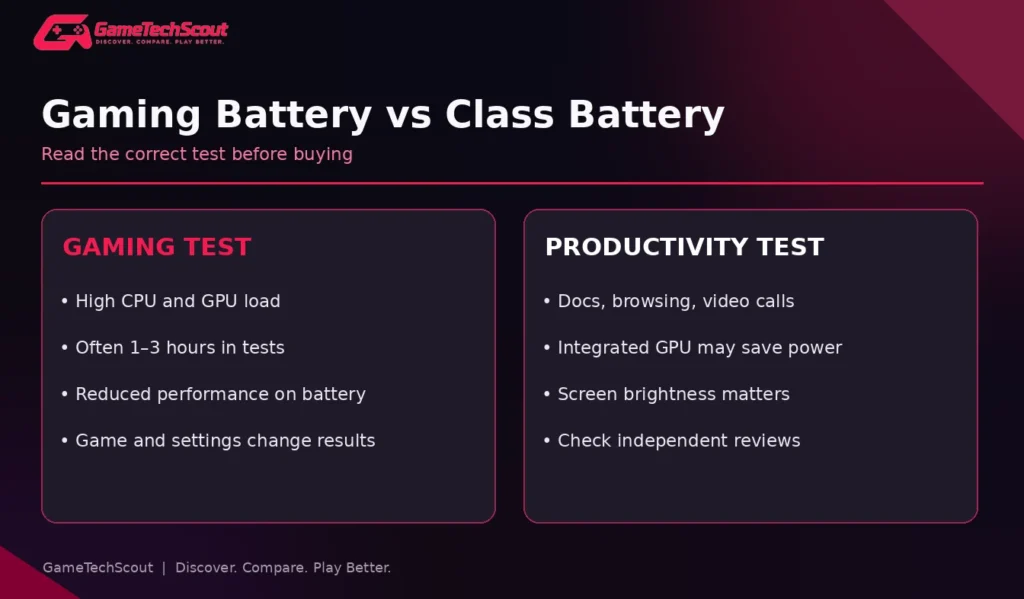
If you use your laptop for studying, check productivity battery tests separately from gaming tests. Also consider charger weight, USB-C charging support, keyboard comfort and whether fan noise is distracting in quiet rooms. A machine that lasts three hours of gaming might still be inconvenient for a full day of lectures if it drains quickly in browser-heavy use.
Before you buy, ask yourself: Will I be near outlets during class? Do I need the GPU away from home? Would a less powerful but longer-lasting laptop plus a desktop make more sense? Our gaming laptop versus desktop value guide explores that broader decision.
Common Battery-Life Mistakes
- Comparing an advertised productivity maximum with real AAA gaming runtime.
- Buying solely on battery Wh while ignoring screen and CPU efficiency.
- Leaving Turbo mode and the dedicated GPU enabled during simple tasks.
- Treating a frame-rate reduction on battery as automatic proof of a fault.
- Assuming a small USB-C charger can replace the original power brick for gaming.
- Ignoring battery wear on a used or refurbished gaming laptop.
- Disabling necessary updates or security tools in pursuit of marginal savings.
Frequently Asked Questions
How long does gaming laptop battery life last while gaming?
It varies widely. Independent gaming-focused tests show some laptops running for roughly one to three hours under their test conditions, but your game and laptop can differ substantially.
Why does my gaming laptop battery drain so fast?
Dedicated graphics, demanding games, bright displays, performance profiles, background applications and battery wear can all contribute. Diagnose the active workload rather than guessing one cause.
Does 60Hz save battery compared with 144Hz?
It may reduce power use on some laptops during light tasks, but the benefit depends on the panel and system. Test the available modes on your model.
Can I play games on battery without damaging my laptop?
Gaming on battery is a supported use on many laptops, but it reduces runtime and often performance. Follow manufacturer guidance and stop using the system if its battery is physically damaged.
Does turning off RGB improve gaming laptop battery life?
It can reduce some power draw, but GPU activity, screen brightness and power profiles usually matter more.
Should I leave my gaming laptop plugged in all day?
Follow the maker’s guidance and consider a battery-charge limit feature when available. A charge limit can help with long-term use but reduces the charge available when unplugged.
Conclusion: Match Battery Expectations to Your Real Workload
Gaming laptops are portable gaming computers, not unlimited unplugged consoles. Expect different endurance for lectures, streaming and intensive AAA games; then use the right power profile, refresh setting and GPU mode for each activity.
Before buying, compare separate gaming and productivity tests for your shortlisted models, and check battery condition if you’re purchasing used. What’s your gaming laptop model, and how long does it last unplugged? Share your experience in GameTechScout’s comments.
Editorial note: Battery figures are attributed to third-party tests and illustrative calculations. GameTechScout has not tested every laptop described. Firmware, battery wear and workload can change results.