
Table of Contents
You load your favorite game and notice the same problem again: frame rates fall during busy scenes, loading screens drag, or the system stutters whenever you have Discord and a browser open. You’ve saved some money for a new component, but which part will make the biggest difference? Buying a graphics card because it looks powerful is tempting. It is also a good way to waste your budget if the real issue is somewhere else.
This gaming PC upgrade guide starts with diagnosis, not shopping. You’ll learn how to spot CPU, GPU, memory, and storage limitations; compare potential upgrades; verify compatibility; and decide when spending more money on an old platform no longer makes sense. The advice is based on published hardware guidance and practical troubleshooting principles rather than testing your particular computer.
What Should You Upgrade First in a Gaming PC?
Short answer: Upgrade the component that is actually limiting the experience you care about. There is no single correct order for every gaming PC.
| What you notice | First thing to investigate | Why |
|---|---|---|
| Low FPS with GPU constantly busy | Graphics card | Rendering may be the limitation |
| Low FPS with GPU underused and CPU threads saturated | CPU / platform | Game or processor may be restricting frame delivery |
| Stutter when opening apps or changing areas | RAM pressure and background activity | Memory shortage can cause paging and instability |
| Very long load times on an HDD | SSD | Faster storage can reduce loading time |
| Crashes after upgrades | Power, thermals, BIOS and drivers | Performance parts need a compatible system |
These are diagnostic clues, not absolute proof. A game can switch between CPU and GPU limitations as resolution, settings, and scenes change.
Step 1 — Measure Your Existing Performance
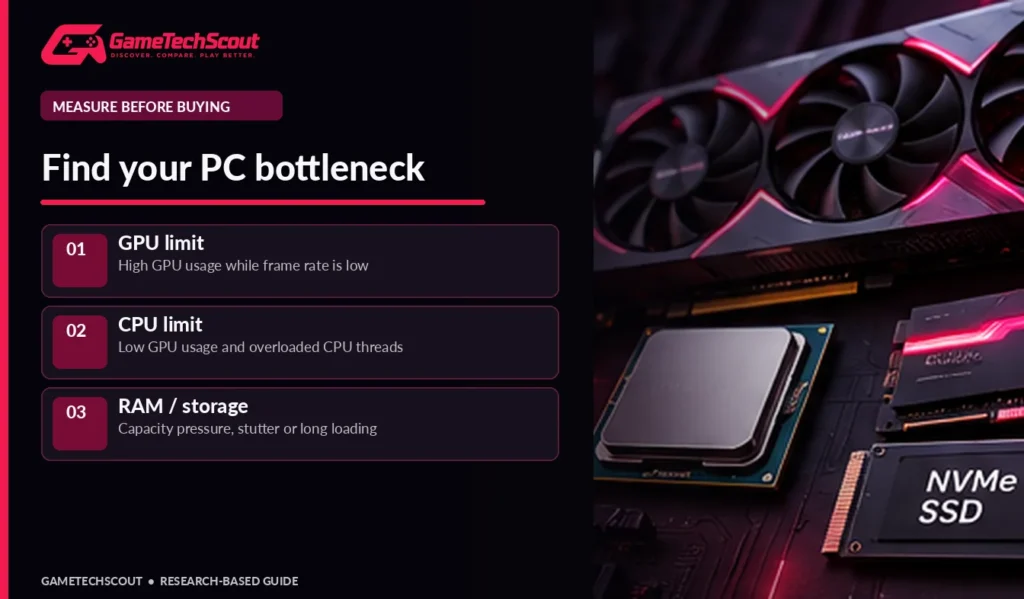
Do not buy anything yet. Open a game you play frequently, use the same demanding scene for several minutes, and record FPS, GPU utilization, CPU utilization, memory use, and temperatures. Windows Task Manager provides basic CPU, memory, disk, and GPU information, while a reputable in-game performance overlay can offer more detailed timing data. Microsoft’s PC performance troubleshooting guide also recommends reviewing Task Manager resource usage and unnecessary background processes before spending money on hardware.
GPU Limitation: When a Faster Graphics Card Might Help
If the GPU remains heavily loaded while the CPU is not consistently the limiting factor, graphics horsepower may be the first priority. This is especially common at higher resolutions and demanding graphics presets. Reduce the resolution or graphics settings temporarily. If FPS climbs substantially, that supports the case that the game was graphics-limited.
Do not treat 100% GPU use as a problem on its own. A GPU working at high utilization may simply mean you’re using its capacity effectively. The problem is whether you are getting the frame rate and image quality you want.
CPU Limitation: When a Graphics Upgrade Won’t Solve It
Some games rely heavily on a few CPU threads, while background tasks can also limit performance. If your GPU is underused and frame rates barely improve when you lower graphics settings, investigate processor performance, memory configuration, CPU temperatures, and game-specific behavior.
A total CPU usage number can hide a single saturated thread, so use per-core or per-thread graphs where possible. Check whether CPU clocks decline under sustained load, which could indicate heat or a power limit rather than simply an old processor.
RAM and Storage Bottlenecks
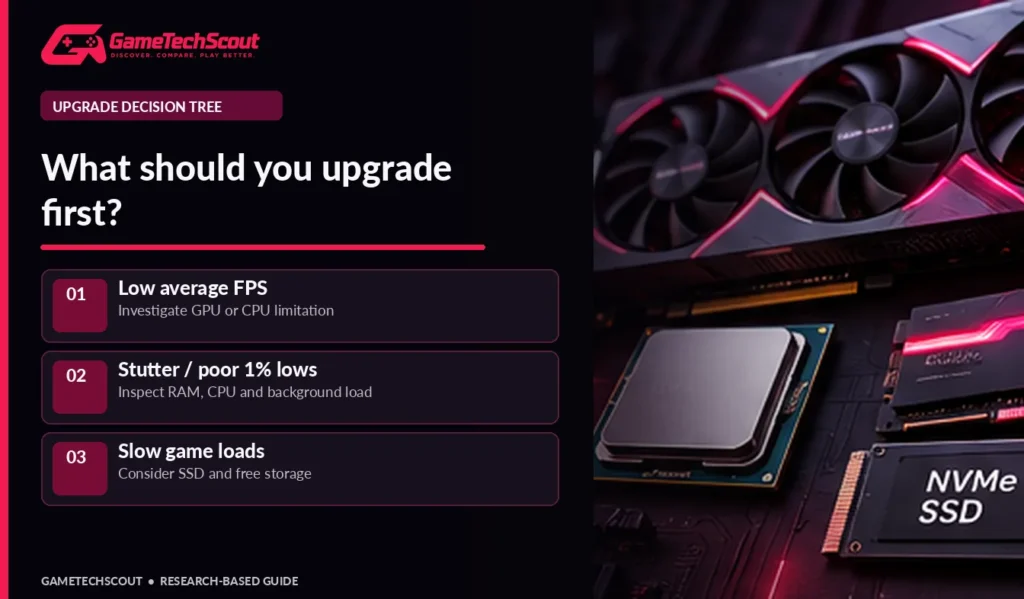
If system memory is nearly full, background applications close unexpectedly, or switching between tasks is painfully slow, RAM capacity may be the issue. If games live on an HDD and spend time loading textures or levels, moving to an SSD may improve responsiveness. Neither change is a guaranteed increase in average FPS; avoid promises that an SSD doubles game frame rate.
Step 2 — Decide Whether to Upgrade GPU, CPU, RAM, or SSD
Graphics Card: Best When Rendering Is the Limitation
A GPU upgrade can make the largest difference for demanding games when the current graphics card runs out of performance or VRAM. Compare published benchmarks for the exact titles and resolutions you play. Look at native frame rates separately from upscaled and frame-generated numbers. Check power-supply wattage and connectors, card length and thickness, PCIe slot clearance, case airflow, and the monitor you own before choosing.
Spending heavily on a new GPU while retaining a weak CPU can create an unbalanced system. Conversely, a new graphics card can be an excellent upgrade when the existing processor still keeps up in your games.
Processor: Upgrade When Your Measurements Support It
A CPU upgrade is especially relevant for high-refresh competitive gaming, simulations, and games whose frame delivery depends on processor speed. First check whether a compatible drop-in upgrade exists for your motherboard. Confirm socket support, BIOS version, cooling, RAM type, and board power limits.
Changing platforms can require a CPU, motherboard, RAM, and possibly a cooler, so a processor quoted at an attractive price may represent a much larger project. That’s why you should compare the total cost against a newer complete system.
RAM: Capacity, Channels, and Compatibility
A desktop with 8GB system RAM is often an upgrade candidate; 16GB remains useful for many games, while 32GB offers more headroom for demanding titles and multitasking. But capacity is not the only specification. Verify whether your motherboard uses DDR4 or DDR5, supported speeds, free slots, and recommended dual-channel arrangements. Mixing incompatible kits can cause instability.
If you already have 32GB and Task Manager shows ample memory free, buying 64GB may do little for your games. Use the savings on the part that is actually limiting your experience.
SSD: Faster Loading, Not Magical FPS
Moving games from a mechanical hard drive to an SSD can make loading and updates more convenient. If your games already run on a healthy NVMe SSD, buying a much faster one often produces smaller real-world differences than promotional read-speed numbers suggest. Prioritize enough capacity and a reputable model, then verify motherboard slot support and thermal clearances.
Step 3 — Estimate the Total Upgrade Cost
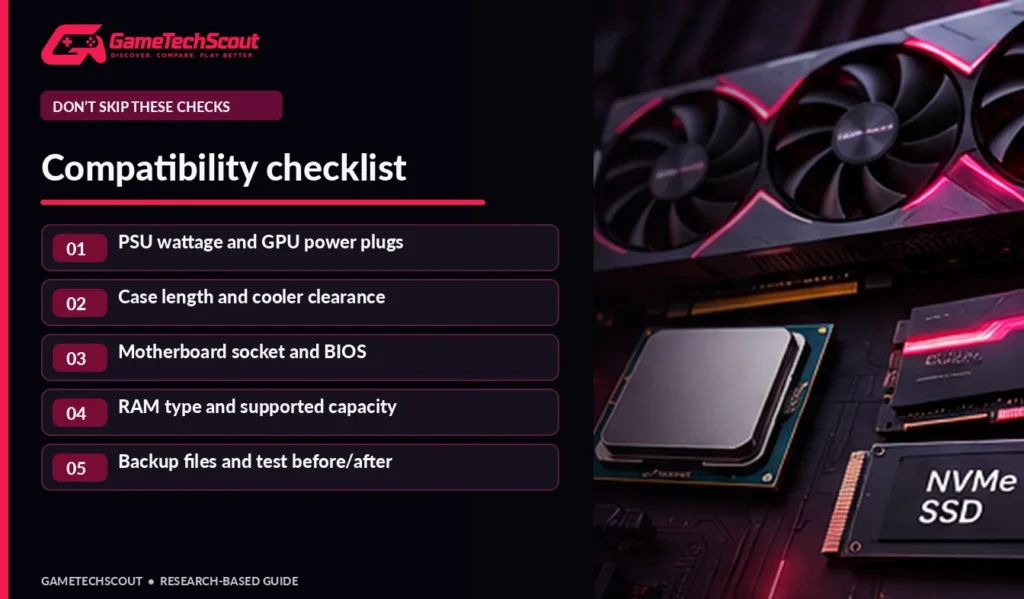
A good shopping list includes hidden expenses. If a GPU demands more power than your existing supply can reliably deliver, include a quality PSU. If a CPU needs a different socket, include the motherboard and compatible memory. A new cooler might be necessary, and you may need to reinstall or reactivate software after substantial changes.
| Potential upgrade | Additional checks / possible expense |
|---|---|
| GPU | PSU, power cables, case clearance and CPU balance |
| CPU | Socket, BIOS, cooler, board compatibility |
| Platform move | Motherboard, RAM type and sometimes Windows activation |
| RAM | Matching memory standard and available slots |
| SSD | Interface, slot space, heatsink and data migration |
Do not turn approximate price ranges from old articles into guaranteed current costs. Part prices change and local taxes and promotions matter. Our custom gaming PC build recommendations provide a useful comparison when you’re deciding whether a major refresh is worth it.
Step 4 — Verify Compatibility Before Ordering
Power Supply and Connectors
Check the PSU’s actual model and specifications, not just a case label saying “gaming 700W.” Verify the new GPU manufacturer’s power guidance for the complete system and use the correct supported power connectors. Do not improvise adapters without checking cable and PSU specifications. A quality PSU is important for safe, stable operation.
Motherboard and BIOS
Check the motherboard manufacturer’s CPU support list and BIOS instructions. Some processors only work after a BIOS update. Follow those instructions carefully; an interrupted firmware update can create serious problems. If your motherboard is older or proprietary, expansion options may be limited.
Cooling and Case Dimensions
Measure physical clearance for the graphics card, CPU cooler, and cables. Larger cards can block adjacent slots. Good airflow matters as much as adding another fan with bright lighting. For a deeper explanation, read Noctua’s case airflow fundamentals, which distinguish intake fans from exhaust fans and recommend planning airflow as a system.
Step 5 — Install and Test the Upgrade Carefully
Turn off the computer, disconnect power, and follow the component manufacturer’s anti-static and installation guidance. Back up important files before hardware changes or data migration. If you are not comfortable opening the computer or handling power connections, use a qualified repair service.
After installation, update necessary drivers from official vendors, verify device detection, test a game you know well, and compare results against your baseline. Record both average FPS and frame-time stability if possible. Also watch temperature and fan behavior during longer sessions, not only the first minute.
If performance is worse than expected, check memory channel configuration, display connection, power settings, BIOS, driver state, and whether the game has changed its graphics preset. A more expensive component can still underperform because of configuration issues.
When Should You Stop Upgrading an Old Gaming PC?
There is a point when a platform refresh becomes more economical. If you need a new GPU, CPU, motherboard, RAM, PSU, and SSD, compare the total with a new or refurbished desktop that already includes those components. The math depends on current prices, the health of your existing system, and the warranty included with alternatives.
For examples of complete second-hand configurations, see our used gaming desktops by budget guide. If you prefer professional assembly, compare our best prebuilt PC guide instead.
Is a New Monitor a Better Upgrade?
Sometimes. If your PC already maintains solid frame rates and you use an older 60Hz screen, a better monitor may deliver a more noticeable everyday improvement than a small CPU upgrade. However, upgrading to 240Hz won’t manufacture 240 FPS from a system that runs your games at 80 FPS. Read RTINGS’ explanation of refresh rate and frame time before shopping.
Common Upgrade Mistakes to Avoid
- Buying a GPU solely because it has a higher model number.
- Assuming low FPS always means the graphics card is too slow.
- Ignoring CPU single-thread behavior and background processes.
- Ordering RAM with the wrong DDR generation or incompatible timings.
- Forgetting PSU connectors and physical GPU clearance.
- Replacing a healthy NVMe SSD expecting a large FPS gain.
- Skipping the baseline test, so you cannot tell whether the upgrade helped.
- Spending so much that a complete replacement would offer better value.
Frequently Asked Questions About Gaming PC Upgrades
What should I upgrade first in my gaming PC?
Diagnose the bottleneck first. A GPU helps when rendering is limiting FPS; CPU improvements help certain high-refresh and simulation workloads; RAM helps capacity pressure; SSDs help loading. There is no universal first part.
Is 16GB RAM still enough for gaming?
It can be for many games, but 32GB gives more room for newer games and multitasking. Your usage matters more than a universal number.
Does an SSD increase FPS?
Usually not significantly in average frame rate. SSDs primarily improve loading and storage responsiveness; individual games may behave differently.
Can I install a new GPU in an old desktop?
Often, but verify PSU wattage, connectors, case clearance, motherboard behavior, CPU balance, and software support before buying.
Should I upgrade the CPU or GPU for 1440p gaming?
Graphics settings and resolution often make the GPU especially important, but measure utilization and frame times to know where your own game is limited.
When is replacing the PC better than upgrading?
When the total cost of multiple necessary upgrades approaches a newer complete system, compare both options including warranties and resale value.
Conclusion: Upgrade What Is Actually Holding You Back
The right upgrade makes the gaming experience you care about better. Start by measuring, not guessing. Identify the limiting component, verify compatibility, compare the full cost, and test again after installation. That method saves more money than chasing a new part every time a game stutters.
If you’re weighing an upgrade against a new build, explore GameTechScout’s custom PC configurations and share your current CPU, GPU, RAM, and game-resolution target in the comments. The details matter more than the age of the case.
Editorial disclosure: This is a research-based upgrade guide, not a diagnostic examination of your individual hardware. Follow manufacturer instructions for electrical safety, firmware, and component compatibility.