

Table of Contents
I start by clearing airflow and checking temperatures and clock speeds, then change settings only if the evidence points to heat-related slowdown. A gaming laptop can feel warm and sound loud during a demanding game without having a fault. I look for a change in performance, not just a warm keyboard. I keep the laptop on a clear surface and observe what happens during play before changing settings or opening the case. That approach helps me avoid unnecessary repairs and makes each change easier to judge. A sudden performance change is more useful to investigate than warmth alone.
Key Takeaways
- Start with airflow and performance evidence.
- Warmth and fan noise can be normal under load.
- Check temperatures and clock speeds while the slowdown occurs.
- Try reversible setting changes before opening the chassis.
- Get model-specific help if throttling or shutdowns continue.
Normal Heat, Thermal Throttling, and Overheating
Some warmth and active fans are normal during a demanding game, but heat-related clock-speed reductions and emergency shutdowns mean different things. Thermal throttling is a safety response that reduces CPU or GPU clock speeds to control heat. The key difference is whether the laptop is limiting performance or shutting down to protect itself.
Most processors reach thermal limits at about 95-100°C, while graphics cards usually reach them near 90°C. A laptop may lower clock speeds near those limits, but one temperature reading alone does not prove a fault. The model, workload, and length of time at that temperature matter.
Thermal throttling reduces performance to control heat, while true overheating can trigger an emergency shutdown or hardware damage.
Gaming laptops under full load can produce 150-200 watts of combined heat. Room heat, soft surfaces, blocked vents, dried thermal paste, and high-performance settings can all add to the cooling burden.
A warm chassis and busy fans during gaming do not, by themselves, show that anything has failed. Treat an unexpected shutdown as more serious than a warm-feeling keyboard.
How to Diagnose Gaming Laptop Overheating?
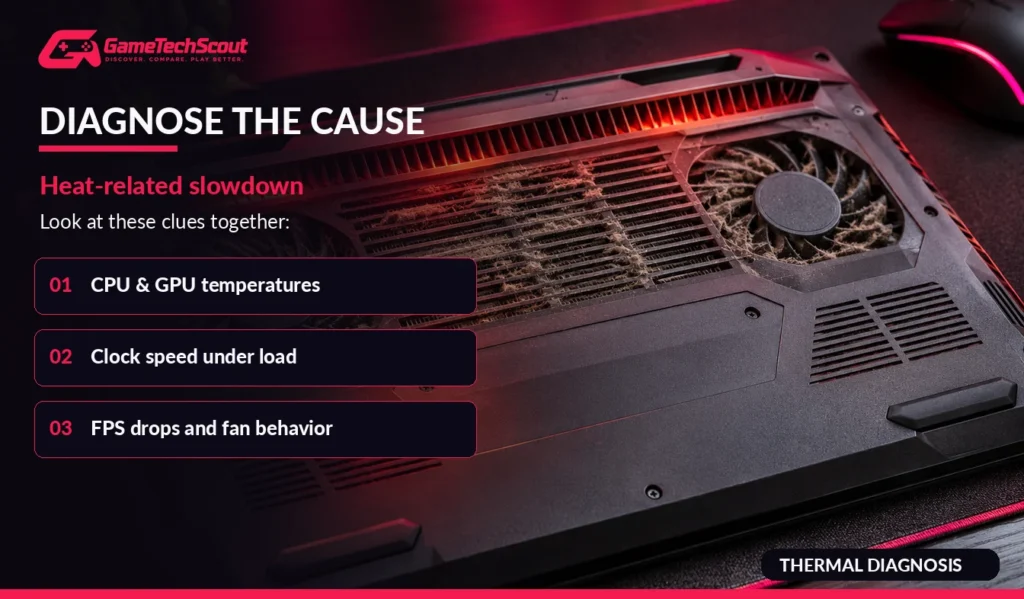
A sudden FPS drop paired with loud fans is a reason to check temperatures and clock speeds, not proof by itself that the laptop is throttling. Compare the readings during play, when lag or a frame-rate drop actually happens. High temperatures alongside falling CPU or GPU clock speeds can confirm thermal throttling.
Symptoms that suggest heat-related slowdown
Common warning signs include sudden FPS drops, loud fans, laggy performance, and a laptop that feels unusually hot. Those signs can also come from other causes, so I treat them as clues rather than a diagnosis. A game may stutter for reasons unrelated to heat.
Pay attention to whether the slowdown begins after several minutes of play or appears right away. A repeatable change under the same workload gives you a better comparison than a single brief dip.
Confirm the cause with temperatures and clock speeds
HWMonitor is a free monitoring tool, and HWiNFO can track CPU and GPU temperatures. Neither tool makes one temperature a universal pass-or-fail reading. I compare the values with clock speeds and the game’s performance at that moment.
Use this short check while the problem is happening:
- Reproduce the slowdown in a game.
- Monitor CPU temperature.
- Monitor GPU temperature.
- Check whether clock speeds fall while temperatures are high.
If only the fans get louder while clocks and frame rates stay steady, heat may not explain the issue. Record the temperature and clock-speed readings at the moment performance drops.
Restore Clear Airflow Around the Chassis
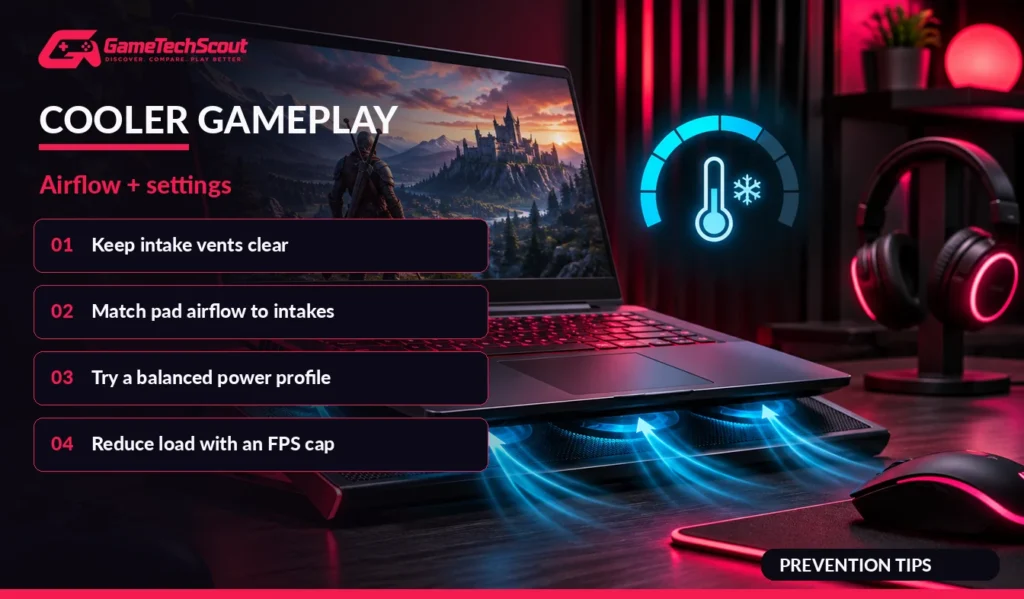
Put the laptop on a hard, flat desk first, because a soft surface can cover the openings it needs for airflow. Clear intake and exhaust paths give the cooling system room to move air. A bed, couch, blanket, or lap can block vents underneath the chassis.
Use a desk or table during a long gaming session. Check the bottom and sides for intake openings, then leave space around rear exhaust vents so warm air can escape.
Raising the rear can improve passive airflow without adding a fan. A laptop stand is a useful first test because it lifts the chassis while leaving powered cooling out of the comparison.
If you later test a cooling pad, compare it with the same stand and game settings. That helps separate the effect of elevation from the effect of powered fans.
A small rear lift may also make the keyboard easier to use, but stability matters. Check the bottom and rear edges for unobstructed intake and exhaust before starting a long session.
Clean Vents Without Risking the Hardware
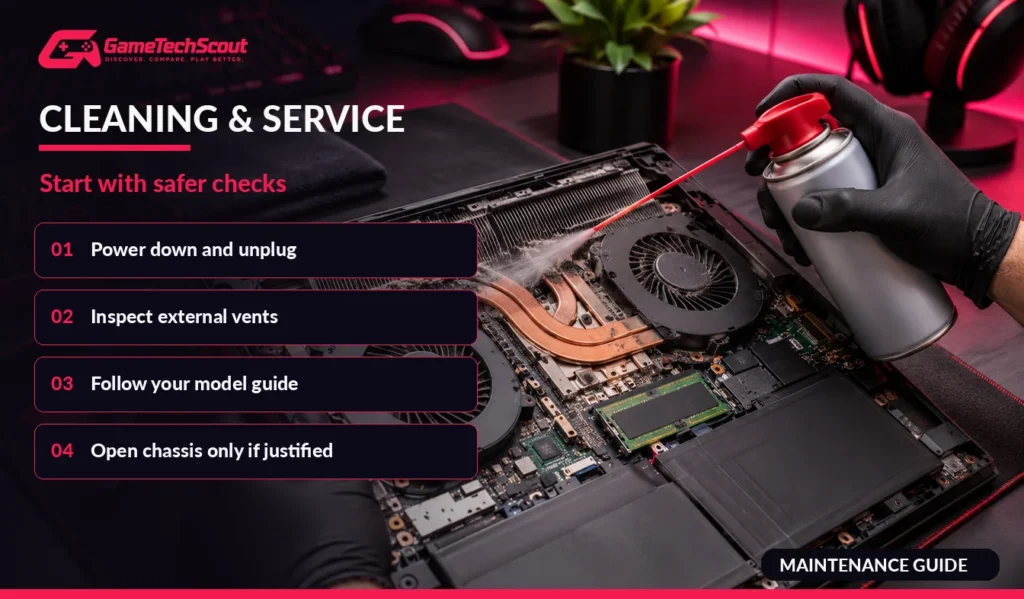
Before directing compressed air at any vent, shut down the laptop and unplug its power cable. Short, controlled bursts can clear loose dust without opening the case. Dust can make fans work harder and louder, and it may contribute to thermal throttling.
External vent cleaning
Use these steps for an external check:
- Shut down the laptop and unplug it.
- Locate the vents in the manual for your model.
- Use compressed air in short, controlled bursts.
- Recheck fan noise and temperatures during a game.
A standard household vacuum can build static electricity that may damage internal electronics. Avoid putting a vacuum nozzle against the vents. Cleaning through the openings often removes enough loose dust without taking the case apart.
When opening the chassis is justified
Opening the chassis may be worth considering if overheating or loud fan noise continues after external cleaning. The steps vary by model, and some laptops need special care during service. Do not assume that every case opens the same way.
Persistent fan problems may involve a loose connection, a software issue, or a fan that needs replacement. A BIOS update may help when the cause is software-related, but it is not a general fix for dust or a failing fan.
Check for a fan, connection, software, or BIOS issue before assuming dust is the only cause of persistent fan noise or overheating.
Tune Power and Graphics Settings
If temperatures are high under load, try the laptop maker’s balanced or thermal-management profile before making invasive changes. One change at a time makes it easier to see what helps. A balanced profile or frame-rate cap can reduce workload and power use.
Choose a lower-power profile
Manufacturer performance modes can manage cooling and power. High-performance modes may draw more power, which can add heat during a demanding game. A balanced profile may lower heat, though it can also limit peak performance.
Reduce the game’s workload
Resolution, textures, shadows, and anti-aliasing affect CPU or GPU demand. Ray tracing and shadows can be good settings to lower when a game runs hot. The table shows common choices and their trade-offs.
| Adjustment | What to change | Likely heat effect | Trade-off or condition |
|---|---|---|---|
| Balanced manufacturer profile | Switch from high performance | May reduce power and heat | Peak speed may fall |
| Frame-rate cap | Set a lower frame limit | Reduces needless rendering work | Fewer maximum frames per second |
| Lower ray tracing or shadows | Reduce demanding effects | Can lower GPU demand | Visual detail may drop |
| DLSS 3 or FSR where supported | Enable supported upscaling | May reduce rendering load | DLSS 3 frame generation works on modern RTX 40 series laptops; FSR supports wider hardware |
DLSS 3 frame generation is available on modern RTX 40 series laptops. AMD FSR works across a wider range of hardware, though support depends on the game.
Change one setting, then compare both temperature and game performance under similar conditions. Keep the setting only if it improves comfort or stability without an unacceptable loss of game performance.
Do Cooling Pads Make a Difference?
A cooling pad can help, but its fans need to push air toward the laptop’s actual intakes. Fan placement matters more than fan count when the pad’s airflow misses those openings. A temperature drop may not improve FPS if the laptop was not throttling.
Match pad airflow to the laptop’s intakes
Check where the laptop draws air before choosing a fan-equipped support. A pad can be a poor match if its fans miss the intakes or block an exhaust vent. A desk fan can add room airflow, but it does not target the laptop’s intake as closely.
A sealed, high-pressure pad can push more air through a compatible gaming laptop than an open-air pad. It is usually louder, bulkier, and more demanding to power, so the larger temperature drop has trade-offs.
Compare stands, open-air pads, and sealed pads
Tests show that results can vary widely by laptop and workload. In a 2017 test of 12 pads across three laptops, internal temperatures fell by 13°F on average. Individual results ranged from about 1-2 degrees to much larger changes.
In that test, CPU performance improved by less than 2% on average. A GPU-heavy Rise of the Tomb Raider test gained less than one frame per second. At maximum speed, pads measured 48-55 dB in a room measuring 40-43 dB.
| Option | How it moves air | Best fit | Main trade-off |
|---|---|---|---|
| Rear laptop stand | Raises the laptop for passive airflow | Testing elevation alone | No powered fan |
| Open-air fan pad | Blows air upward through open space | Intakes aligned over pad fans | Fans can miss intakes |
| Sealed high-pressure pad | Pushes air through a sealed contact area | Compatible gaming laptop intake layout | Louder, bulkier, needs more power |
| Desk fan | Moves room air toward the laptop | Adding broad airflow nearby | Less targeted intake cooling |
A separate comparison of 20 coolers across three laptops found reductions above 20°C for winning coolers on some systems. On a newer ASUS Strix, results ranged from about 5-13°C, depending on workload.
The best-cooling model in that comparison was also the loudest, and performance gains were smaller than temperature drops. Try a stand alone before adding a powered pad if you want to know whether elevation is doing most of the work.
Reduce Unnecessary Software Load
Before launching a game, use Task Manager to see whether an unnecessary app is consuming CPU time in the background. Close only what you recognize and do not need for play. Do not end unfamiliar system processes.
Find avoidable background load
A browser with many open tabs, a music player, or another app can use CPU time and memory. Check the process list before deciding that the game or cooling system is at fault.
Update software without assuming it is the cure
Windows updates and graphics-driver updates are useful software-maintenance steps. An update may address a software problem, but it is not a guaranteed way to lower temperature.
Use this checklist to make a small, controlled change:
- Open Task Manager with Ctrl + Shift + Esc.
- Sort processes by CPU use.
- Close only apps you recognize and do not need.
- Check for Windows and graphics-driver updates.
Close a program only if you know what it does and can safely stop it. If an update is available, install it through the normal Windows or graphics-driver process.
Recheck temperatures during the same game after changing one background or software item at a time.
When Internal Cooling Needs Inspection
Consider internal cooling only after airflow, dust, fan operation, workload, and power settings have been checked. Persistent heat and throttling can justify an inspection of the thermal interface and heat-sink mounting. Internal work is an advanced repair, not a casual first step.
Rule out airflow and fan faults first
A fan that does not spin or makes an unusual sound may need attention beyond dust removal. A loose connection or failing fan can keep the cooling system from moving enough air, even when the vents look clear.
High heat can also come from a demanding workload or a high-power profile. Check those factors before treating thermal paste as the cause.
Treat thermal-interface work as model-specific
Thermal interface material is the compound or pad between a processor and heat sink. Laptop cooling assemblies may use different types of this material, so one repair method does not fit every model.
Removing a heat sink disturbs its compound. The exact service procedure matters when replacing or reapplying it, and a repair shop can inspect the mounting if you lack the needed tools or experience.

There is no universal thermal-paste replacement interval for every laptop. A technician should base the work on the model and the condition of its cooling parts, not age alone.
Do not remove a heat sink unless you can follow the service procedure for that exact laptop model.
What Does Laptop Repair Cost?
A basic diagnostic can cost $0-$79 in 2026 US repair estimates, while deeper board-level or liquid-damage assessment is listed at $99-$149. Assessment and repair are different charges, so ask what the quoted fee covers. Labor and replacement parts can raise the final bill.
Basic diagnostics and labor
Estimated computer-repair labor runs $80-$150 per hour, depending on shop type and location. A basic diagnostic may cover an initial check, while a deeper assessment can take more time or involve more complex hardware testing.
Board-level repair and replacement
A laptop motherboard or logic-board replacement can cost $299-$900 or more, depending heavily on the model. The board’s availability and the laptop’s design can affect the quote.
| Service | 2026 US estimate | What affects the bill |
|---|---|---|
| Basic diagnostics | $0-$79 | Shop policy and initial test scope |
| Deep board-level or liquid-damage assessment | $99-$149 | Testing depth and damage type |
| Labor | $80-$150 per hour | Shop type and location |
| Motherboard or logic-board replacement | $299-$900+ | Laptop model and part cost |
A shop may apply a diagnostic fee to the repair, or charge it separately. The type of shop, location, and laptop model affect the final quote, so compare the listed work rather than the headline price alone.
Ask for a written estimate that separates diagnostic fees, labor, and replacement parts before approving repair.
Build a Simple Prevention Routine
A quick external check every few months is easier than waiting until dust and noise become persistent problems. Keep the routine simple so it is easy to repeat. Check vents every three to six months, and sooner in dusty or pet-heavy homes.
These four habits cover the routine without requiring you to open the chassis:
- Keep the laptop on an open, hard surface while gaming.
- Check vents for visible dust.
- Clean every three to six months.
- Shorten the interval in dusty homes or homes with pets.
Pet hair and airborne dust can build up faster in some rooms. A quick visual check helps you decide whether the normal schedule still fits your home.
Keep routine maintenance external unless a persistent problem calls for model-specific service.
The next check can be a calendar reminder, not a reason to take the laptop apart. Put the next vent check on the calendar for three to six months from now, sooner if dust or pet hair builds up quickly.
Conclusion
The best first fix is usually the simplest one: give the laptop clear airflow and confirm what its temperatures and clock speeds are doing. Evidence-led, reversible changes are a sensible starting point before internal work or repair.
Persistent throttling or shutdowns deserve professional attention, especially when basic airflow and software checks do not help. Start with a clear desk and a temperature check, then seek model-specific service if throttling or shutdowns continue.
FAQ
Is 90°C too hot for a gaming laptop?
Not always; 90°C can be near the thermal limit for some graphics cards, while CPU limits often sit around 95-100°C. The laptop model and how long the reading lasts matter. A brief peak differs from sustained heat with falling clock speeds. Check the readings alongside performance, rather than treating 90°C as a universal pass-or-fail line.
Can a cooling pad increase FPS?
Yes, a cooling pad may help recover performance when thermal throttling is reducing clock speeds. It may lower temperatures without changing FPS if the laptop was not throttling in the first place. Results depend on whether the pad’s fans line up with the laptop’s intakes. A stand can also show whether simply raising the rear helps.
How often should I clean my gaming laptop vents?
Check and clean the vents every three to six months as a practical routine. Dusty rooms and homes with pets may need more frequent attention because dust and hair can build up faster. Start with an external check, and use your model’s service instructions for any deeper work. More frequent checks do not mean the chassis must be opened.
Can I use a household vacuum to clean laptop vents?
No, avoid a household vacuum because static electricity can damage internal electronics. Shut down and unplug the laptop before cleaning. Use compressed air in short, controlled bursts at the vents instead. Check the model’s manual to find the openings, and do not force air into a fan at length or take the chassis apart casually.
Should I replace thermal paste if my gaming laptop runs hot?
Not as a first step; there is no universal replacement interval for every laptop. Check dust, airflow, fan operation, workload, and power settings before treating thermal paste as the cause. Laptop cooling parts may use different thermal interface materials. Heat-sink removal disturbs the compound, so follow the exact model’s service instructions or use a qualified repair service.
What should I do if my laptop shuts down while gaming?
Stop the demanding game session and check that the vents have clear space. A shutdown is more serious than ordinary thermal throttling, which lowers clock speeds to manage heat. Let the laptop cool before using it again. If shutdowns recur, arrange service so a technician can check the cooling system and other hardware for a fault.