
Table of Contents
I would start a custom build by matching its graphics option and display to the games I play most, then fit the rest of the configuration to my budget and travel needs. A competitive player may want a fast-refresh screen, while a student who travels may value a lighter all-rounder. The best configuration balances the GPU, CPU, RAM, SSD, and screen around the way you will use it.
TGP is the power limit assigned to a laptop GPU, which helps determine its sustained performance and heat output. Available choices depend on the model, but custom builders may let you select the CPU, GPU, RAM, storage, and sometimes the display. I’ll focus on choosing useful parts and checking which upgrades each model allows.
Key Takeaways
- Match the graphics option and screen to your main games.
- Set a firm budget before adding upgrades.
- Choose a CPU for demanding work beyond gaming.
- Use 16GB RAM as a basic starting point; consider 32GB for more comfort.
- Check the exact model’s memory and SSD upgrade paths.
- Review testing, shipping, and warranty terms before ordering.
My best starting point is the configuration that meets your main gaming need without paying for upgrades you will not use.
How Should I Customize Gaming Laptop Options for My Play Style?
I would write down the games and other demanding apps I use before opening a configurator. Start with the workload, since a laptop for competitive gaming may call for different choices than one for school, creative work, and travel. Choose parts in the order that affects your use most: games, model, graphics and processor, then memory and storage.
Custom builders may offer choices for the CPU, GPU, RAM, and storage. Some models also offer display choices. ASUS, MSI, Sager/Clevo, and XOTIC PC have model families with configurations that can vary by size and parts.
- Name the main games and demanding workloads you plan to run.
- Choose a model and screen size that fit your desk, bag, and viewing habits.
- Select the CPU and GPU for the games and apps you named.
- Set RAM and storage based on the apps and files you expect to keep in use.
Compare only the parts that change how you will use the laptop. A longer options list does not make every upgrade useful.
Configurator choices depend on the exact model, so two laptops from one brand may not offer the same screen or upgrade path. I would also look at the listed graphics power limit, not just the GPU name, because TGP can affect sustained performance.
Compare only configurations that meet those requirements, so extra options do not distract from the parts that affect your use.
What Budget Should I Set for a Custom Gaming Laptop?
In 2026, the listed mid-range custom-laptop tier runs from $1,600 to $2,200 and typically pairs an RTX 5060 or RTX 5070 with the rest of the build. That range is a useful starting point, not a fixed price for every configuration. In 2026, listed custom laptops span from $1,299 for productivity builds to more than $4,500 for flagship RTX 5090 mobile workstations.
The listed tiers show how graphics options and intended use shape a budget. A productivity entry point may suit work and everyday tasks, while higher tiers offer configurations aimed at buyers seeking more capable gaming systems. The final price changes with the model and selected parts.
| Tier | Listed price range | Typical GPU | Buyer profile |
|---|---|---|---|
| Productivity entry point | $1,299 | Varies by build | Work and everyday use |
| Mid-range | $1,600-$2,200 | RTX 5060 or RTX 5070 | Gaming and mixed use |
| High-performance | $2,200-$3,500 | RTX 5070 Ti or RTX 5080 | Demanding gaming builds |
| Flagship | $3,500-$4,500+ | RTX 5090 | Top-tier gaming or mobile workstations |
The listed high-performance tier runs from $2,200 to $3,500, with RTX 5070 Ti or RTX 5080 options. The flagship tier starts at $3,500 and reaches $4,500 or more, with the RTX 5090 as its typical graphics option.
For a custom gaming laptop, the GPU is only one part of the price. A larger or faster screen, more memory, a bigger SSD, and a different chassis can change the total. I would keep some budget aside for those choices instead of treating the starting price as the final cost.
Set a firm total budget before comparing optional upgrades.
Which NVIDIA GeForce RTX GPU Tier Fits Your Games?
The RTX 5070 is a sensible middle choice for many builds, while the RTX 5080 makes more sense when a GPU-limited workload can use its extra throughput. That extra capacity has a cost: as of October 2026, an RTX 5080 build adds roughly $400-$600 over an RTX 5070 Ti build. In GPU-limited workloads, that premium corresponds to approximately 25-30% more rasterization throughput.
The XOTIC PC RTX 50-series collection lists RTX 5050, RTX 5060, RTX 5070, RTX 5070 Ti, RTX 5080, and RTX 5090 options in 2026. I would narrow the choice by the games, resolution, and settings I use, rather than picking the largest number available.
- Mainstream RTX 50 options: RTX 5050, RTX 5060, and RTX 5070.
- Higher-throughput RTX options: RTX 5070 Ti and RTX 5080.
- Flagship or entry-level alternatives: RTX 5090 for flagship builds, or Intel Arc 130T for entry-level custom laptops.
RTX 5050, RTX 5060 and RTX 5070 for mainstream builds
The GeForce RTX 5050, GeForce RTX 5060, and GeForce RTX 5070 cover several mainstream custom-build options. Entry-level laptops with Intel Arc 130T graphics score about 4,200 points in 3DMark Time Spy, around three times lower than RTX 5060 systems in that benchmark.
That result compares one benchmark, not every game. Games, TGP, and cooling all affect real-world results, so a benchmark score cannot promise the same outcome across laptops.
RTX 5070 Ti and RTX 5080 for higher GPU throughput
The RTX 5080 premium matters most when a workload is limited by the GPU and can use the extra rasterization throughput. A game that is limited by another component may not gain the same amount. I would compare configurations at the resolution and settings I expect to use.
RTX 5090, RTX features and entry-level alternatives
NVIDIA GeForce RTX 50-series laptop GPUs use Blackwell architecture, fifth-generation Tensor Cores, and fourth-generation ray-tracing cores. More than 800 games and applications use RTX features, including DLSS Multi Frame Generation.
Those features can matter when the software supports them, but their presence does not make every game behave alike. Compare GPU configurations at the resolution and settings you actually plan to use.
How Much CPU and Memory Do I Need?
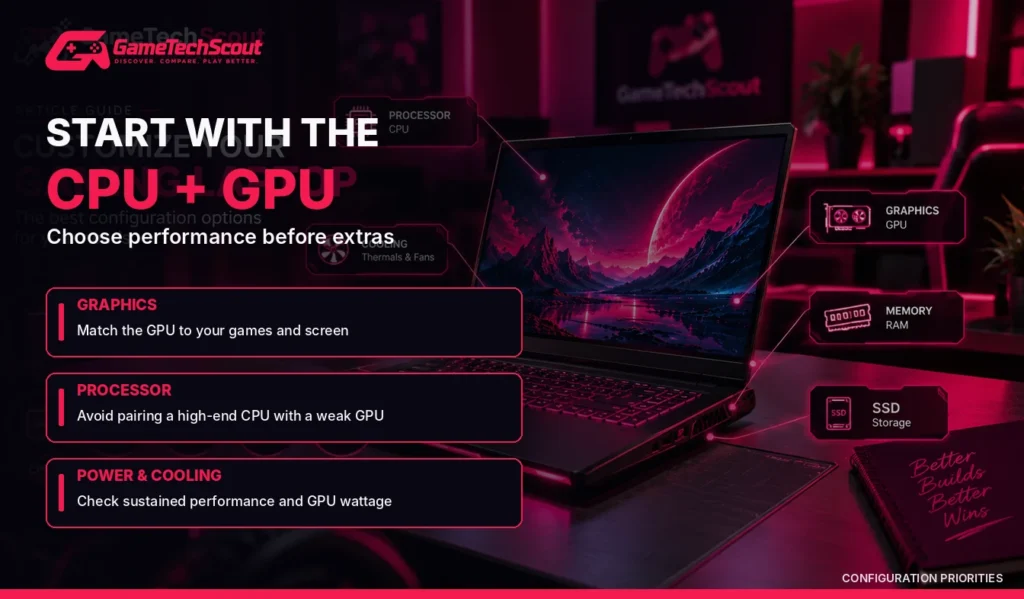
I would choose a processor for the demanding work I do outside games, then set RAM capacity to match the number of apps I keep open. For a basic starting point, 16GB RAM suits lighter use, while 32GB is a more comfortable target for gaming alongside other apps. More CPU cores can help rendering or compiling, but they do not automatically improve game performance.
Choose a CPU for the work beyond gaming
Rendering and compiling can use many CPU cores, so I would give those workloads more weight than casual browsing. Gaming performance also depends on the GPU, game, and laptop design. An Intel Core Ultra or AMD Ryzen choice should fit the software I actually run.
A listed CLX configuration pairs a Core Ultra 9 275HX with 24 cores, 24 threads, a 2.7GHz base clock, and a 5.4GHz turbo clock. Its configurator offers a Core Ultra 9 290HX for $180 more. That is one configuration example, not a general guide to processor upgrade prices.
Set RAM capacity for today’s games and apps
For gaming alongside chat, a browser, or creative software, 32GB can leave more room for multitasking. Demanding games and software may need more, while lighter use may work well with 16GB. I would check the requirements of the programs I use before paying for extra capacity.
The CLX memory chooser lists 8GB, 16GB, 32GB, and 48GB options. It lists increases of $306, $812, and $2,338 for the latter three capacities. These listed charges belong to that specific configuration; they should not be read as typical market prices.
Check the selected model’s supported memory capacity before paying for a configuration that exceeds it.
Which Screen and Display Options Matter Most?
A 16-inch QHD+ 240Hz screen, such as the one listed for the MSI Vector 16 HX AI, is a useful example of balancing resolution and refresh rate. Resolution shapes detail, while refresh rate describes how often the screen can update each second. A fast refresh rate is most useful when the GPU can sustain the frame rate you want.
The models below show how size, resolution, and refresh rate can differ across configurations. Price and components are listed examples, not a promise that every seller offers the same setup at all times.
| Model | Listed price | Processor and graphics | Display details |
|---|---|---|---|
| ASUS TUF Gaming A16 FA608UMI-NB73 | $1,500 | Ryzen 7 260, RTX 5060 | 16-inch FHD+ 144Hz |
| ASUS TUF Gaming A18 FA808PP-NB94 | $1,950 | Ryzen 9 8940HX, RTX 5070 | 18-inch display |
| MSI Vector 16 HX AI A2XWIG-XPC | $2,699 | Core Ultra 9 275HX, RTX 5080 | 16-inch QHD+ 240Hz |
| XOTIC PC GX16 Epic | $4,199 | Core Ultra 9 275HX, RTX 5090 | 16-inch UHD+ 300Hz |
A higher resolution gives images and text more detail, but it also asks more of the GPU. A higher refresh rate can make motion look smoother when the laptop sustains enough frames. I would match both settings to the games I play and the graphics option in the build.
The HP OMEN MAX 16 (2025) is available with 165Hz or 240Hz displays, including a top-end OLED option. OLED is one choice for buyers who value that screen type, while the refresh rate remains a separate specification to compare.
Choose a screen you will enjoy using at your normal viewing distance, not just the largest number on a spec sheet.
How Much Storage Should I Configure?
For most gaming builds, I would start by estimating how many large games and work files I want installed at the same time. One terabyte suits a modest library, while 2TB gives more room for a larger collection. File sizes and the number of installed games decide which capacity fits.
Pick SSD capacity for your game library
A larger SSD can reduce the need to remove games before installing new ones. Creative projects and other large files also use space, so I would count those alongside games. The right capacity depends on what stays installed, not only the total size of a game library I own.
In 2026, the CLX Osiris 18 configurator lists an 8TB WD Black SN850X NVMe SSD for an additional $2,123. It lists an 8TB Samsung 9100 PRO NVMe SSD for an additional $2,315. Those are specific high-capacity options, not typical prices for every SSD.
Check drive slots before adding a second SSD
A second SSD needs an open slot and a drive that fits the laptop’s supported form factor and interface. A larger primary drive may be simpler when a chassis has no free slot, though its price may differ from adding another drive.
- Check how many M.2 slots the exact laptop has.
- Confirm the drive’s supported form factor and interface.
- Compare a larger primary SSD with the cost of adding a second drive.
The selected CLX Osiris 18 motherboard does not have enough slots for a second M.2 drive. That restriction applies to that configuration, not every gaming laptop or motherboard.
Confirm the exact model’s available M.2 slots before ordering a second drive.
Which Gaming Laptops Can I Upgrade Later?
ROG Strix is the clearest fit among these examples if you want user-accessible RAM and two internal storage slots. Upgrade access changes by model generation, so I would not assume that two laptops in one family share the same layout. Check the exact model number and year before relying on a future upgrade.
The table compares confirmed paths for four model families. “User-accessible” means the listed component can be reached for an upgrade, but it does not mean every part or configuration has the same limit.
| Laptop family | Memory upgrade path | Storage upgrade path |
|---|---|---|
| ROG Strix, Intel-based 2025 and 2026 | Up to 64GB DDR5, two SO-DIMM slots | ROG Strix G and SCAR: two M.2 slots |
| Latest Zephyrus laptops | Soldered memory | SSD remains user-accessible |
| ASUS TUF Gaming A16 Advantage Edition (2023) | User-replaceable RAM | User-replaceable storage |
| HP OMEN MAX 16 (2025) | Up to 64GB user-replaceable RAM | Up to 2TB user-replaceable storage |
The 2025 and 2026 Intel-based ROG Strix laptops support up to 64GB DDR5 through two SO-DIMM slots. ROG Strix G and Strix SCAR laptops have two M.2 storage slots. Those details make the family a practical option for buyers who value internal access.
Latest Zephyrus laptops use soldered memory, so the RAM cannot be swapped like a module. Their SSDs remain user-accessible for upgrades. The ASUS TUF Gaming A16 Advantage Edition (2023) has user-replaceable RAM and storage.
The HP OMEN MAX 16 (2025) offers up to 64GB of user-replaceable RAM and up to 2TB of user-replaceable storage. It is also available with an RTX 5090 Laptop GPU running at up to 175W. That graphics detail does not change the listed memory and storage upgrade paths.
Check the exact model number and generation before relying on a future upgrade.
Can I Configure One Laptop for Gaming and Creative Work?
A laptop for gaming and creative work should be balanced around the most demanding apps you actually use, not games alone. For demanding creative software, I would prioritize multi-core CPU capability, RAM, and fast storage. The best mix depends on whether your work relies more on the CPU, GPU, or memory.
Balance gaming with creator and school workloads
Video editing, design, and school projects can place different demands on a laptop. I would check the software’s own system needs, especially for memory and graphics, before settling on a build. A capable gaming system can also handle everyday work, but each app sets its own limits.
A multi-core CPU can help with tasks that use several cores at once. Fast storage can make large project files easier to keep close at hand, while more RAM can help when several apps run together. Those choices support work as well as play, but they do not replace checking software requirements.
Consider hybrid graphics and memory needs
The 2026 ROG Flow Z13 uses a different memory approach. It is available with up to 128GB LPDDR5x memory, and its AMD Strix Halo platform can allocate up to 96GB of memory to the GPU. That shared-memory design differs from a conventional laptop configuration with separate system memory and graphics memory.
The 2023/2024 ROG Flow Z13 is a separate generation. It is available with up to an RTX 4070 Laptop GPU rated at 65W TGP and up to 32GB LPDDR5 memory. Those specifications should not be treated as the same configuration as the 2026 model.
Match the exact generation’s components to your software before treating a hybrid device as a substitute for a conventional gaming model.
What Should I Know About Power, Cooling and Portability?
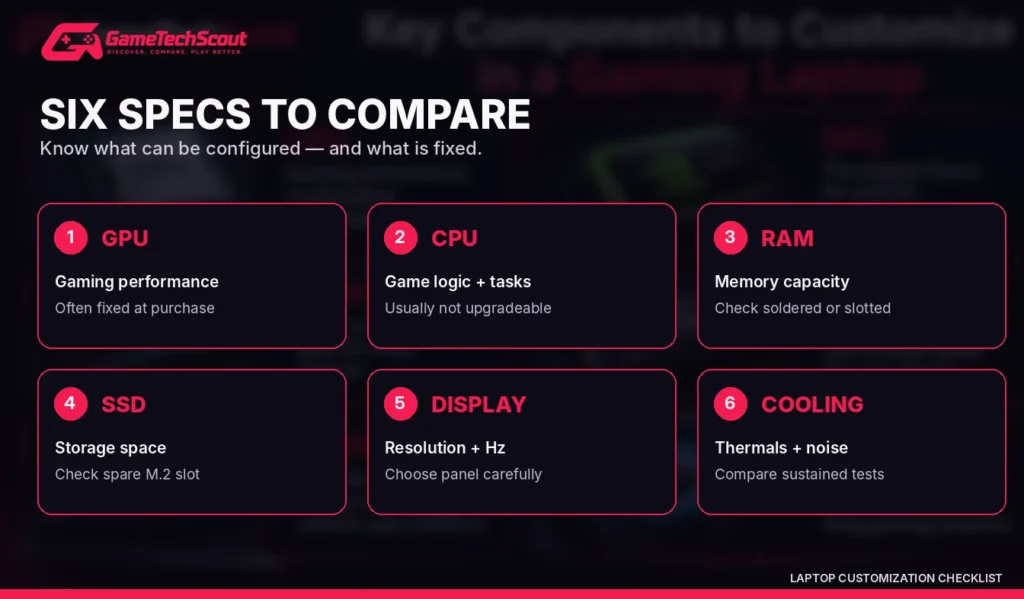
A laptop GPU’s model name does not tell the whole performance story, because its power limit and cooling also matter. Heat and workload shape sustained output, so the same GPU name can behave differently across laptop designs. TGP, cooling, and the task being run all affect sustained GPU performance.
NVIDIA describes Blackwell Max-Q as a design intended to improve power efficiency, performance, and battery life in RTX laptops. That goal does not promise a set battery runtime for every system. A laptop’s screen, workload, and settings also affect how long it runs away from an outlet.
ASUS says its ROG XG Mobile external GPU supports up to an RTX 5090 Laptop GPU. It works with Windows 11 laptops that have Thunderbolt 5, Thunderbolt 4, or USB4. The unit weighs 1.98 lb, which is a real extra load to consider when traveling.
Check the laptop’s supported connection standard before considering an external GPU.
How Are Custom Laptops Tested and Shipped?
A custom laptop’s delivery estimate starts after its build and testing process, not when a reader first compares configurations. Build time depends on the configuration, and assembly is separate from the time a shipment spends in transit. Most custom RTX 50-series laptops from XOTIC PC ship within 3-9 business days after assembly and testing.
XOTIC PC says its RTX 50-series laptops undergo stress testing, thermal validation, and configuration verification before shipping. These checks can confirm that the built system was tested and that its parts match the selected configuration. Other custom builders may use different processes.
Before ordering, I would get clear details about the build timeline and what happens before dispatch. The XOTIC PC range is specific to its custom RTX 50-series laptops, not a universal delivery estimate for custom gaming laptops.
- Confirm the selected configuration and its main components.
- Request the current build estimate for that configuration.
- Check which testing the builder performs before shipping.
- Review the shipping arrangements and delivery terms.
Use the estimate for the exact configuration, since the build time can change with the parts selected.
Check the current estimate for the exact configuration before placing an order.
What Support and Warranty Terms Should I Check?
I would compare labor and parts coverage separately, since the two terms can have different durations. Read each term on its own, rather than treating a labor promise as full parts coverage. Save the coverage period for both labor and parts before you order.
XOTIC PC RTX 50-series laptop pages list lifetime labor support and parts coverage. CLX lists lifetime labor and technical support with one year of parts coverage in its base option. Its listed choices add two years of parts coverage for $150 or three years for $300.
ASUS notebook warranty extensions can bring U.S. gaming notebooks to a maximum total warranty period of three years. The extension must be bought within the device’s warranty period. These are product-specific terms, not universal rules for every laptop brand or model.
Lifetime labor coverage does not mean lifetime parts coverage. Check the parts term as a separate promise.
Save the warranty details for the exact configuration before completing an order.
Conclusion
I would choose a custom build by prioritizing the parts that shape my everyday play, then spending only on upgrades that serve a clear need. The GPU and display should fit the games and settings I use, while the CPU, memory, storage, and size should suit my other work and travel.
A higher specification matters only when it supports a real task or preference. I would compare available configurations, then check compatibility, upgrade access, support, and warranty details for the exact model.
Pick your preferred model, review its available options, and verify the final configuration before ordering.
FAQ
How much RAM should a gaming laptop have in 2026?
16GB is a basic starting point for a gaming laptop in 2026, while 32GB is a more comfortable target for gaming with other apps open. Demanding games, creative tools, and heavy multitasking can call for more. I would check the software requirements and the laptop’s supported memory limit before choosing a capacity.
Can I upgrade a gaming laptop’s graphics card later?
Usually, you cannot upgrade a gaming laptop’s internal GPU after buying it. Laptop graphics are generally built into the system, rather than installed as a user-replaceable card. An external GPU can be an option only when the laptop supports a compatible connection, such as Thunderbolt 5, Thunderbolt 4, or USB4. Check support for the exact model.
Is an RTX 5080 laptop worth the extra cost over an RTX 5070 Ti?
As of October 2026, an RTX 5080 build adds roughly $400-$600 over an RTX 5070 Ti build and offers approximately 25-30% more rasterization throughput in GPU-limited workloads. That can matter when the workload uses the extra throughput. Games, TGP, and cooling affect results, so the gain is not guaranteed in every game or laptop.
How much SSD storage do I need for gaming?
1TB is a reasonable starting point for a modest installed game library, while 2TB gives more room for a larger collection. The right size depends on game file sizes and how many titles you keep installed at once. Work files also take space, so include them in your estimate if you use the same laptop for school or creative tasks.
What should I check before ordering a second SSD?
Check that the exact laptop model has an open M.2 slot and supports the SSD’s form factor and interface. A second drive will not fit every chassis, even when another model in the same brand family supports one. I would compare the cost of a larger primary SSD with the cost of a second drive before choosing.
How long does a custom gaming laptop take to ship?
Most custom RTX 50-series laptops from XOTIC PC ship within 3-9 business days after assembly and testing. The build time varies by configuration, so the estimate does not begin when you first compare options. Other builders may have different schedules. Check the current estimate for the exact laptop and selected parts before placing an order.
Can I extend an ASUS gaming laptop warranty after buying it?
Yes, an ASUS gaming notebook warranty can be extended in the United States, but the extension must be purchased within the device’s warranty period. ASUS extensions can bring the total warranty period to a maximum of three years. I would check the terms for the exact notebook, including what parts and service the extension covers.