
Table of Contents
You’re in the middle of an intense game. Your PC is running smoothly, your graphics settings are dialed in, but something still feels wrong. Fast-moving objects look blurry, dark areas lack detail, and the screen doesn’t seem to keep up with the action.
The problem might not be your graphics card. It could be your monitor.
Choosing the right computer gaming monitor can change how you experience everything from competitive shooters to breathtaking open-world adventures. A sharper display reveals more detail, a higher refresh rate makes movement feel smoother, and better contrast brings dark scenes to life.
But with 144Hz, 240Hz, 4K, OLED, Mini-LED, and countless other specifications competing for your attention, finding the right screen can become overwhelming.
You don’t necessarily need the most expensive monitor. You need one that matches your PC, favorite games, and budget.
In this guide, we’ll compare six of the best computer gaming monitors in 2026, explain what makes each one worth considering, and help you choose a display you’ll enjoy using every day.
Best Computer Gaming Monitors in 2026: Quick Comparison
Whether you’re building your first gaming setup or upgrading an older display, these six models serve different needs.
| Gaming monitor | Resolution | Refresh rate | Panel type | Best for |
|---|---|---|---|---|
| ASUS ROG Swift OLED PG32UCDM Gen3 | 4K | 240Hz | QD-OLED | Premium gaming |
| LG UltraGear 27GX700A-B | 1440p | 280Hz | OLED | Fast 1440p gaming |
| AOC Q27G3XMN | 1440p | 180Hz | Mini-LED VA | Budget HDR |
| Alienware AW2725DM | 1440p | 180Hz | IPS | Affordable gaming |
| Alienware AW2525HM | 1080p | 320Hz | Fast IPS | Competitive esports |
| Gigabyte M32U | 4K | 144Hz | IPS | Gaming and productivity |
Specifications are based on manufacturer documentation. Maximum refresh rates may require particular connections, and pricing varies by retailer.
Quick recommendation: For many PC gamers, a 27-inch 1440p monitor with a refresh rate of 144Hz or higher offers an appealing balance between image sharpness, smooth gameplay, and GPU requirements.
If you have a stronger PC and want premium image quality, an OLED or 4K display may be worth the additional investment.
1. ASUS ROG Swift OLED PG32UCDM Gen3 — Best Premium 4K Gaming Monitor
If you want a high-end computer gaming monitor and have the hardware to take advantage of it, the ASUS ROG Swift OLED PG32UCDM Gen3 deserves a place near the top of your shortlist.
This 32-inch-class display combines a 3840 × 2160 resolution with a 240Hz refresh rate and Tandem QD-OLED technology.
That’s a compelling combination for immersive single-player games and fast-paced competitive titles.
What Makes the ASUS PG32UCDM Gen3 Special?
Its OLED panel produces deep blacks and excellent contrast, allowing bright visual elements to stand out against dark environments.
The near-instantaneous pixel response associated with OLED also helps fast-moving objects appear sharp.
ASUS equips this monitor with DisplayPort 2.1, HDMI 2.1, USB-C connectivity, and a KVM switch. USB-C power delivery supports up to 90W, making the display useful when switching between a gaming desktop and a compatible laptop.
Advantages:
- Detailed 4K resolution.
- Smooth 240Hz refresh rate.
- Excellent OLED contrast and motion clarity.
- Modern connectivity.
- Useful productivity features.
Drawbacks:
- Premium pricing.
- Requires a powerful GPU to benefit from high frame rates at 4K.
- OLED panels require appropriate care.
- Glossy screens may show reflections in some environments.
Who Should Buy It?
Choose this monitor if you own a powerful gaming PC, enjoy high-resolution games, and want a premium display for entertainment and creative work.
ASUS lists a three-year warranty that includes panel burn-in, subject to its warranty terms.
View ASUS PG32UCDM Gen3 specifications
2. LG UltraGear 27GX700A-B — Best High-Performance 1440p Gaming Monitor
A 4K OLED monitor can look incredible, but you may prefer higher frame rates without placing as much demand on your graphics card.
That’s where the LG UltraGear 27GX700A-B becomes interesting.
This 27-inch monitor features a 2560 × 1440 OLED panel with a refresh rate of up to 280Hz.
Its fourth-generation Primary RGB Tandem OLED technology targets improved brightness and excellent image quality.
Why Choose the LG UltraGear 27GX700A?
The 1440p resolution offers more detail than standard 1080p, while the 280Hz refresh rate provides plenty of headroom for competitive gaming.
LG also specifies a 0.03ms gray-to-gray response time and support for compatible adaptive synchronization technologies, including AMD FreeSync Premium Pro and NVIDIA G-SYNC compatibility.
RTINGS recommends this model as a strong midrange OLED alternative, highlighting its motion clarity and suitability for rooms with more ambient light.
Advantages:
- Sharp 27-inch 1440p display.
- Fast 280Hz refresh rate.
- Excellent OLED contrast.
- Extremely fast pixel transitions.
- Adaptive-sync support.
Drawbacks:
- More expensive than conventional IPS displays.
- OLED ownership requires attention to static content.
- Not as sharp as a 4K monitor of similar size.
- Some text rendering may look different from conventional LCDs.
Best for: You want a premium balance of sharpness, speed, and image quality without moving to 4K.
Explore LG UltraGear 27GX700A-B
3. AOC Q27G3XMN — Best Budget Mini-LED Gaming Monitor
Not every great gaming display needs an OLED panel.
The AOC Q27G3XMN is particularly interesting because it brings Mini-LED backlighting and meaningful HDR capability into a more affordable gaming-monitor category.
It features a 27-inch 1440p VA panel, a maximum 180Hz refresh rate, and 336 local-dimming zones.
Those local-dimming zones allow the monitor to control different areas of its backlight independently, improving contrast between bright and dark regions.
Why Is the AOC Q27G3XMN Good for HDR Gaming?
Many inexpensive monitors advertise HDR support without delivering enough contrast or brightness to make a dramatic difference.
The AOC takes a more capable approach with Mini-LED technology and DisplayHDR 1000 certification.
Its VA panel also provides deeper native contrast than many conventional IPS displays.
Independent RTINGS testing identifies the Q27G3XMN as a strong budget 1440p gaming option.
Advantages:
- Sharp 1440p resolution.
- 180Hz maximum refresh rate.
- Mini-LED local dimming.
- Strong HDR performance for its category.
- Good native contrast.
Drawbacks:
- Some blooming around bright objects.
- Dark-level smearing can appear during fast movement.
- Narrower viewing angles than some IPS displays.
- Maximum refresh rate depends on the connection.
Who Should Buy It?
The AOC is worth considering if you love atmospheric games with dark environments, bright effects, and cinematic visuals but don’t want to pay OLED prices.
Check your exact connection requirements: AOC specifies up to 180Hz through DisplayPort, while HDMI operation on the documented configuration is limited to 144Hz at 1440p.
See AOC Q27G3XMN specifications
4. Alienware AW2725DM — Best Affordable 1440p Gaming Monitor
If you’re upgrading from a 60Hz office display or an older 1080p gaming monitor, you don’t need to spend hundreds extra to notice an improvement.
The Alienware AW2725DM is a practical choice for budget-conscious gamers.
It offers a 27-inch 2560 × 1440 Fast IPS panel with a 180Hz refresh rate.
The combination makes it suitable for everyday PC gaming, productivity, and multiplayer titles.
How Does the Alienware AW2725DM Perform?
RTINGS found that the monitor offers low input lag, useful variable refresh rate support, and respectable motion handling.
These qualities make it responsive for fast games.
However, its picture quality has limitations.
The IPS panel doesn’t deliver the deep blacks of OLED or the Mini-LED contrast of the AOC. Its HDR local dimming is particularly weak, meaning you should treat this primarily as an SDR gaming display.
Advantages:
- Affordable 1440p gaming.
- Smooth 180Hz refresh rate.
- Low input lag.
- Wide viewing angles.
- Adjustable stand.
Drawbacks:
- Weak HDR performance.
- Limited native contrast.
- No premium OLED picture quality.
- Requires DisplayPort to reach its full 180Hz refresh rate.
Best for: You want a straightforward upgrade that delivers smoother gameplay and clearer visuals without paying for high-end HDR features.
Dell’s US storefront advertised the AW2725DM at $269.99 during research, although retailer pricing and discounts may change.
Check Alienware AW2725DM details
5. Alienware AW2525HM — Best Gaming Monitor for Competitive Esports
If your favorite games include Counter-Strike 2, Valorant, and other competitive shooters, speed may matter more to you than maximum resolution.
The Alienware AW2525HM targets precisely that audience.
Its 24.5-inch Full HD display uses a Fast IPS panel with a maximum 320Hz refresh rate through DisplayPort.
That’s considerably faster than a traditional 60Hz monitor, provided your PC can produce sufficiently high frame rates.
Is 320Hz Worth It for Gaming?
A higher refresh rate reduces the interval between screen updates.
At 320Hz, the display can refresh every 3.125 milliseconds. At 144Hz, the interval is approximately 6.94 milliseconds.
That difference can improve the perceived smoothness and responsiveness of fast movement, particularly when paired with high frame rates and low input lag.
However, a 320Hz display won’t magically improve your aim.
You still need capable PC hardware, appropriate settings, and consistent gameplay performance.
Advantages:
- Very high 320Hz refresh rate.
- Compact competitive-gaming size.
- Fast IPS panel.
- Adaptive-sync technologies.
- More manageable GPU demands than 4K.
Drawbacks:
- Lower 1080p resolution.
- Less screen space for productivity.
- Not ideal if cinematic detail is your priority.
- HDMI is limited to 255Hz on the documented configuration.
Dell listed this model at $229.99 on its US store during research, with prices subject to change.
Best for: Competitive gamers who prioritize high frame rates over maximum image resolution.
View Alienware AW2525HM specifications
6. Gigabyte M32U — Best Versatile 4K IPS Gaming Monitor
You might want a sharp 4K screen without choosing an OLED panel.
The Gigabyte M32U provides an alternative for gamers who also spend time working, browsing, editing, or managing multiple devices.
Its 31.5-inch IPS display offers 3840 × 2160 resolution with a refresh rate of up to 144Hz.
The larger screen gives you generous space for both gaming and productivity.
Why Consider the Gigabyte M32U?
Its main advantage is versatility.
You get 4K detail, high-refresh gaming, HDMI 2.1 connectivity, and a built-in KVM switch for sharing compatible peripherals between devices.
The IPS panel also avoids the same burn-in concerns associated with OLED screens, making it appealing if you regularly display static application interfaces.
Advantages:
- Detailed 4K resolution.
- 144Hz maximum refresh rate.
- Large 31.5-inch screen.
- KVM functionality.
- HDMI 2.1 and USB-C connectivity.
Drawbacks:
- Limited contrast compared with OLED or effective Mini-LED displays.
- Basic HDR performance.
- Requires substantial GPU power for high-frame-rate 4K gaming.
- Not as responsive as newer 240Hz OLED displays.
Best for: You want one large monitor for games, everyday work, and multitasking.
Explore Gigabyte M32U specifications
Which Computer Gaming Monitor Is Right for You?
Before selecting a display, think about the games you play most often.
| Your gaming style | Monitor type to prioritize |
|---|---|
| Competitive FPS games | 1080p or 1440p with high refresh rate |
| Story-driven AAA games | 1440p or 4K with strong contrast |
| Racing and simulation | Larger display or ultrawide option |
| Mixed gaming and work | 27-inch 1440p IPS or 32-inch 4K |
| Budget-focused gaming | 1440p IPS or Mini-LED |
| Premium visual experience | OLED with high refresh rate |
For example, if you’re mostly playing competitive shooters, a 320Hz 1080p monitor might suit you better than a 144Hz 4K model.
But if you spend your evenings exploring visually detailed games, better contrast and higher resolution may provide a more meaningful upgrade.
1080p vs 1440p vs 4K: Which Resolution Is Best for PC Gaming?
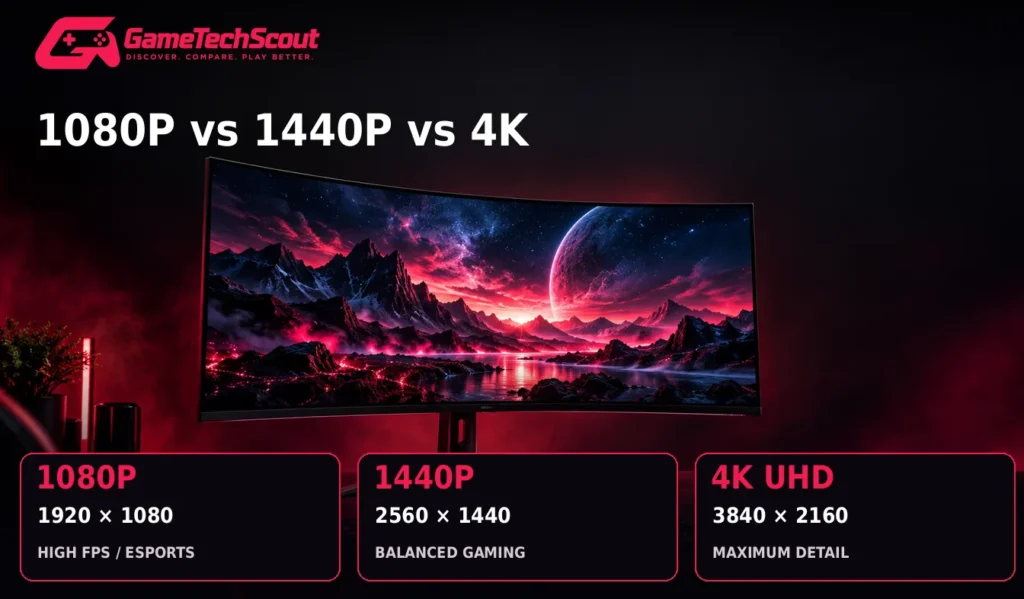
Resolution determines how many pixels appear on your display.
More pixels can create sharper images, but they also increase the rendering workload for your graphics card.
| Resolution | Pixel dimensions | Best use |
|---|---|---|
| Full HD (1080p) | 1920 × 1080 | Budget and competitive gaming |
| QHD (1440p) | 2560 × 1440 | Balanced PC gaming |
| 4K UHD | 3840 × 2160 | High-detail, immersive gaming |
1080p: Prioritize High Frame Rates
1080p remains useful when your GPU is limited or you want especially high frame rates in competitive games.
At 24 or 25 inches, it can be a practical choice.
1440p: The Balanced Option
1440p offers approximately 78% more pixels than 1080p.
On a 27-inch display, the added sharpness is noticeable, while many capable gaming PCs can still deliver enjoyable frame rates.
4K: Maximum Detail, Higher Requirements
4K contains four times as many pixels as 1080p.
It can look extremely sharp, particularly on larger screens, but maintaining high frame rates requires substantially more graphics processing power.
If you own a midrange PC, consider whether 1440p would provide a better overall balance.
IPS vs VA vs OLED vs Mini-LED Gaming Monitors
Panel technology influences contrast, viewing angles, response behavior, and overall image quality.
IPS Panels
IPS monitors usually offer good viewing angles and balanced color reproduction.
They are a sensible choice for mixed gaming and everyday use.
Their main limitation is generally weaker contrast than VA or OLED alternatives.
VA Panels
VA displays typically provide stronger native contrast.
That can make dark environments look deeper, but some VA panels exhibit dark-level smearing during motion.
OLED Panels
OLED pixels generate their own light and can switch off individually.
This provides excellent black levels, extremely fast pixel transitions, and impressive HDR presentation.
However, OLED can experience permanent image retention or burn-in under certain usage conditions, especially with prolonged static content.
Mini-LED Backlighting
Mini-LED isn’t a separate LCD panel type.
It is a backlighting technology used with LCD panels, including VA and IPS, that enables more precise local dimming.
Well-implemented Mini-LED can improve contrast and HDR brightness, although bright objects may still produce some blooming.
Refresh Rate vs Response Time: What Actually Matters?
Monitor marketing often emphasizes numbers such as 240Hz or 1ms, but these describe different characteristics.
Refresh Rate: How Often Your Screen Updates
A 144Hz monitor can display up to 144 refreshes per second, while a 240Hz monitor can display up to 240.
Higher refresh rates can make movement appear smoother when your PC produces enough frames.
Response Time: How Quickly Pixels Change
Pixel response time measures how quickly the display transitions between colors or brightness levels.
Slow pixel transitions can cause visible blur or ghosting, even on a high-refresh-rate monitor.
Is a 1ms Gaming Monitor Always Fast?
Not necessarily.
Manufacturers use different measurements and overdrive settings. Aggressive settings may reduce reported response times while introducing inverse ghosting or overshoot.
Independent motion testing is more useful than relying on the advertised number alone.
Input lag is another separate factor: it describes the delay between the signal entering the monitor and the resulting image appearing.
Other Gaming Monitor Features Worth Checking
Before buying, review these practical details:
- Variable refresh rate (VRR): Helps reduce tearing and stuttering when frame rates change.
- HDR performance: Look for actual brightness, contrast, and local dimming performance rather than an HDR label alone.
- DisplayPort and HDMI: Verify which connection supports your desired resolution and refresh rate.
- Adjustable stand: Height, tilt, swivel, and pivot can improve everyday comfort.
- VESA mounting: Useful if you plan to install a monitor arm.
- Warranty: Particularly important for OLED panels.
- USB-C and KVM: Helpful if you switch between multiple computers.
A monitor that fits your workflow is often more valuable than one with a specification you’ll rarely use.
How Much Should You Spend on a Gaming Monitor in 2026?
Your budget should match both your gaming priorities and your PC’s capabilities.
| Budget | What to investigate |
|---|---|
| Under $200 | Entry-level 1080p or discounted 1440p high-refresh monitors |
| $200–$400 | 1440p IPS, Mini-LED deals, faster esports displays |
| $400–$700 | Higher-end 1440p gaming and discounted OLED models |
| $700+ | Premium OLED, high-refresh 4K and specialist displays |
These ranges are buying categories, not guarantees of current retailer availability.
Recent October 2026 deal coverage shows that some OLED and high-refresh monitors now sell at considerably lower prices than their original launch prices.
Always compare the actual model number and final checkout price rather than trusting the advertised discount percentage.
Common Mistakes to Avoid When Buying a Gaming Monitor
You can avoid an expensive upgrade mistake by checking the following:
- Buying 4K without a capable GPU. Higher resolution can substantially reduce frame rates.
- Ignoring panel quality. Two monitors with the same resolution may deliver very different contrast and motion clarity.
- Trusting advertised response times alone. Check independent tests.
- Overpaying for extreme refresh rates. A 500Hz or 720Hz monitor may provide limited value for your actual games.
- Ignoring your room’s lighting. Screen coatings and reflections affect comfort and image quality.
- Overlooking connection limits. Some monitors reach their maximum refresh rate only through DisplayPort.
- Forgetting warranty coverage. Review policies before choosing OLED.
- Choosing a screen that’s too large for your desk. Measure your space and viewing distance.
Frequently Asked Questions About Computer Gaming Monitors
What Is the Best Computer Gaming Monitor in 2026?
For premium 4K gaming, the ASUS ROG Swift OLED PG32UCDM Gen3 is a strong option. The LG UltraGear 27GX700A-B is an excellent 1440p OLED alternative, while the AOC Q27G3XMN offers attractive budget HDR performance.
Your ideal monitor depends on your games, GPU, and budget.
Is 144Hz Enough for Gaming in 2026?
Yes. A good 144Hz monitor can deliver a smooth gaming experience. Higher refresh rates are useful, particularly for competitive gaming, but aren’t essential for everyone.
Is 1440p Better Than 1080p for PC Gaming?
1440p provides sharper images at common monitor sizes, while 1080p generally requires less GPU power. Choose according to the frame rates your PC can maintain.
Is OLED Better Than IPS for Gaming?
OLED generally provides superior contrast and pixel response behavior. IPS remains attractive for affordability, everyday productivity, and situations where you want to avoid OLED burn-in concerns.
Do You Need a 240Hz Monitor for Competitive Gaming?
You don’t strictly need one, but a 240Hz or faster display can provide smoother motion when your hardware produces high frame rates.
Is a 27-Inch Monitor Good for PC Gaming?
Yes. A 27-inch 1440p monitor is a practical choice for many players because it balances usable screen space, image sharpness, and comfortable desk placement.
Can You Use a 4K Monitor with a Midrange Graphics Card?
Yes, but you may need to lower graphics settings, use supported upscaling, or accept lower frame rates in demanding titles.
What Is the Best Affordable Computer Gaming Monitor?
The Alienware AW2725DM is a practical low-cost 1440p option. If your budget allows, compare it with the AOC Q27G3XMN for stronger HDR performance.
Conclusion: Find the Best Computer Gaming Monitor for Your Setup
The right gaming monitor can make your favorite games look sharper, feel smoother, and become more enjoyable.
But the best choice isn’t always the most expensive screen.
If you want a premium 4K experience, consider the ASUS ROG Swift OLED PG32UCDM Gen3. For fast 1440p gaming, the LG UltraGear 27GX700A-B offers an appealing balance of resolution and refresh rate.
If you’re shopping on a tighter budget, the AOC Q27G3XMN and Alienware AW2725DM deserve attention. Competitive players should consider the Alienware AW2525HM, while gamers who also need a productivity display may appreciate the Gigabyte M32U.
Before you buy, check three things: your graphics card, the games you play most, and your available budget.
Then compare the exact specifications and current retailer prices of your two favorite monitors.
Ready to upgrade your gaming setup? Choose the display that matches how you actually play, not just the one with the highest numbers on the box.
Have a particular monitor in mind? Share your GPU, budget, and favorite games in the GameTechScout comments. Your comparison might help another gamer choose a better display.
GameTechScout — Discover. Compare. Play Better.
Editorial note: This article is based on manufacturer specifications, independent display testing, and published retailer information. GameTechScout does not claim to have personally tested the recommended monitors. Product pricing, stock, and firmware features can change.